
Guide 2 of 4 · Web
Add your taxes, products and stock
Set up sales tax once, add what you sell, then (if you want) the ingredients or supplies you only use.
All guides · About 6 minutes · For owner
Before you start, have ready
- Your sales tax rate (for example GST 5%)
- A list of the items you sell and their prices
Step 1: Know the two lists
MuffinPOS keeps two lists, like a menu and a pantry.
What customers buy goes under "Menu items" in a restaurant, or "Products" in a shop. These show on the till and your online store.
What you buy but never sell, like milk, flour, bags or labels, goes under "Ingredients" (restaurants) or "Supplies" (shops). Customers never see these.
Never add the same thing to both lists. If you sell it, it goes under Menu items or Products only.
Step 2: Add your sales tax
In the merchant portal, open "Tax categories" in the left menu.
Type a short code (like GST), a name your customers will recognise (like "GST 5%") and the rate, then press "+ Add". Do this once for each tax you charge.
Tip: MuffinPOS rounds tax to the nearest cent the same way on the till, the portal and your online store.
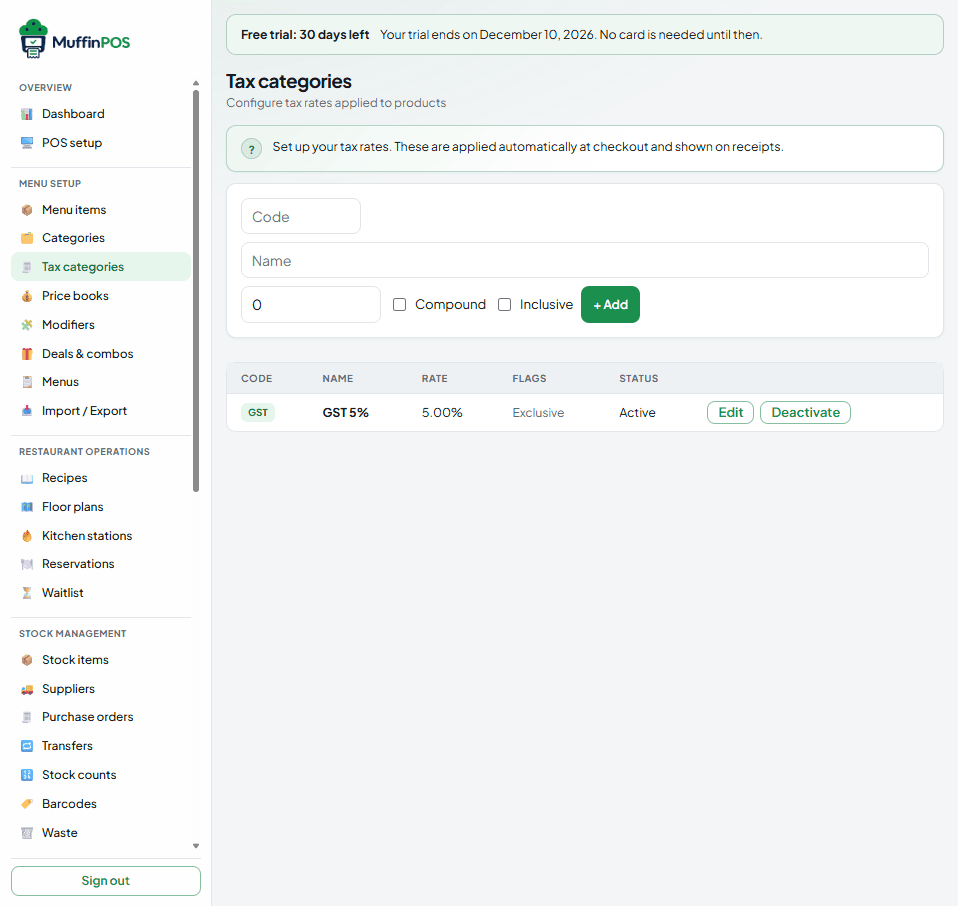
New tax form with a name and rate Step 3: Add something you sell
Open "Menu items" (restaurants) or "Products" (shops) and press "+ Add menu item" or "+ Add product".
Type the name and price. Pick a category so it is easy to find on the till. You can leave SKU empty and MuffinPOS makes one for you.
Scroll down and tick the taxes that apply to this item.
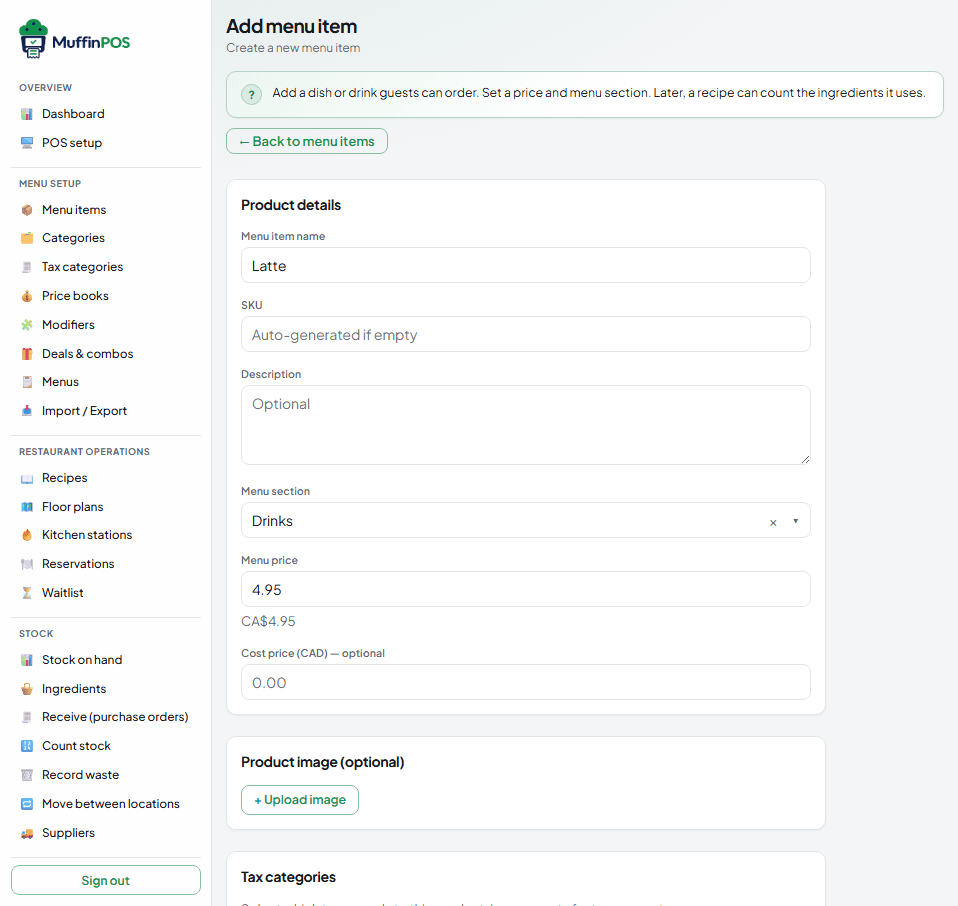
New menu item form with name, menu section, price and tax Step 4: Decide if you want to count it
Under "Stock", turn the switch on if you want MuffinPOS to count how many you have. Shops have it on already.
When it is on, MuffinPOS creates the stock count for you. Do not add it again under Ingredients or Supplies.
Restaurants can leave it off for dishes made to order, like a latte. Turn it on for things you buy ready-made, like bottled drinks. Then press "Save".
Tip: Your till picks up new items and price changes automatically, usually within a minute. Have a long list? Use "Import / Export" to upload a spreadsheet.
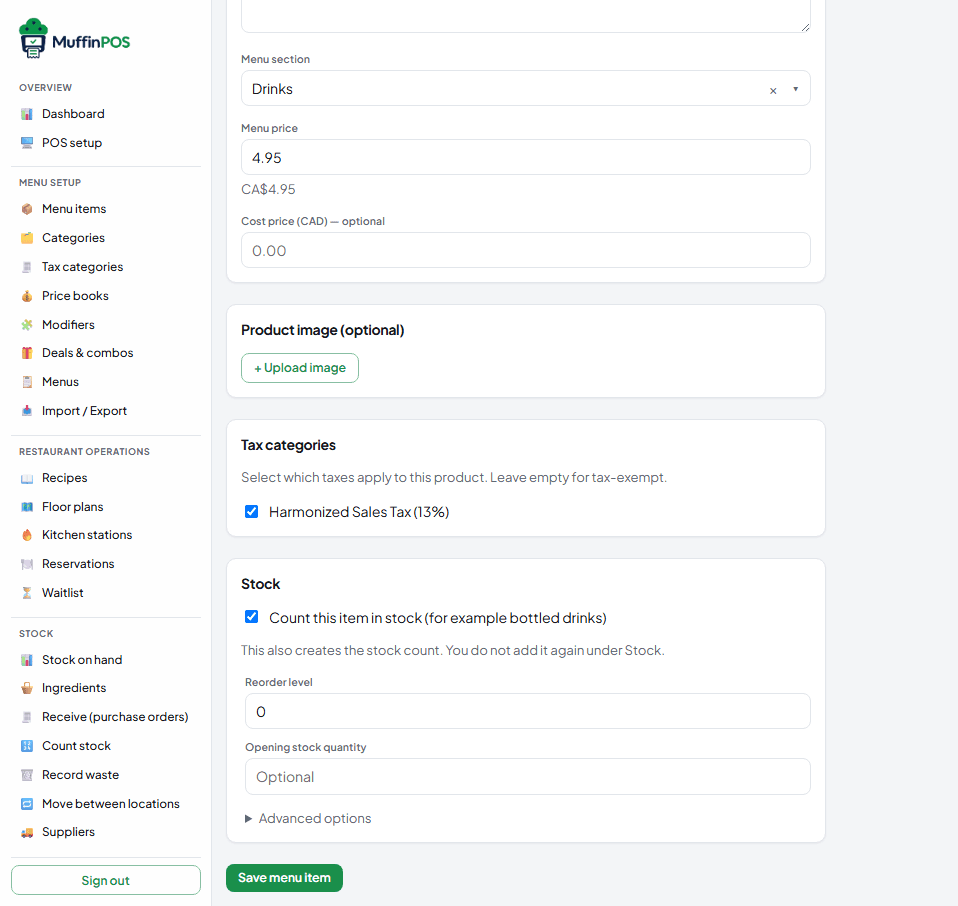
Stock section of the new menu item form with the switch turned on Step 5: Add ingredients or supplies (optional)
Open "Ingredients" (or "Supplies") under Stock in the left menu. Type the name, how many you have now and when to reorder, then press "Save".
If the name matches something you already sell, MuffinPOS stops and asks. Press "Open" to go to the item you sell instead of adding it twice.
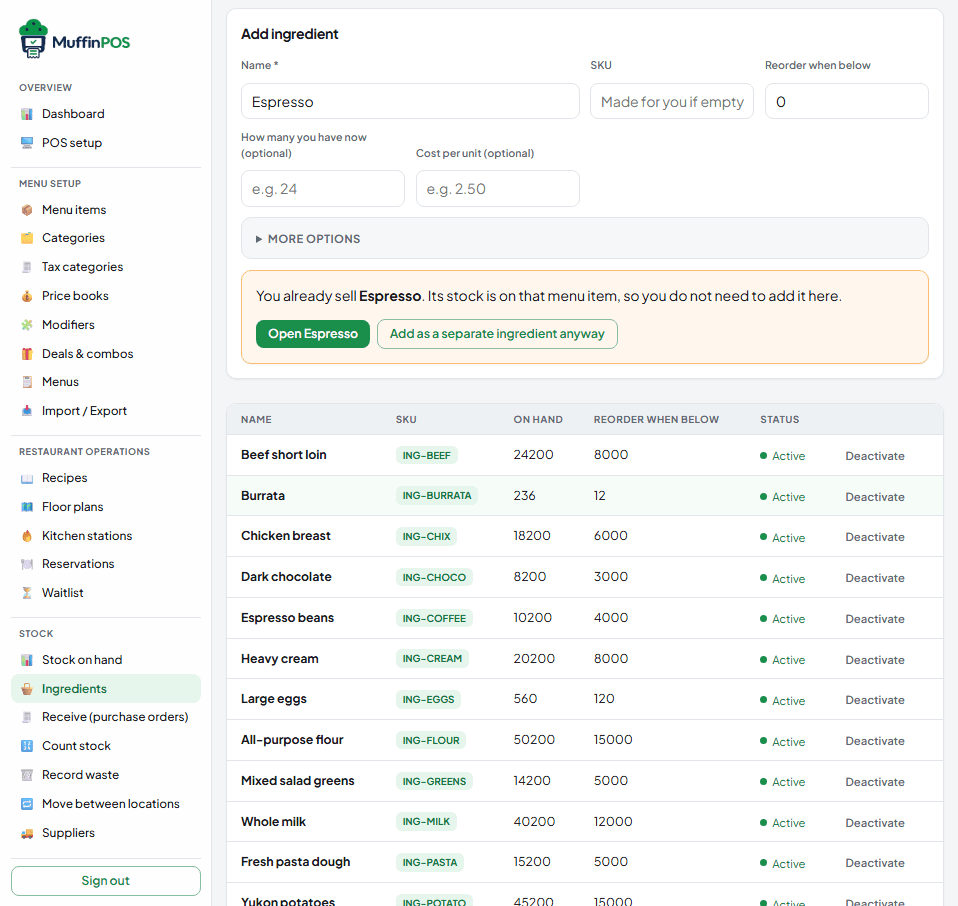
Ingredients page warning that Espresso is already sold on the menu Step 6: See and count your stock
"Stock on hand" shows how many you have of everything: what you sell and your ingredients or supplies, in one list.
The other pages under Stock are things you do: receive a delivery from a supplier, count the shelf, record waste and move stock between locations.
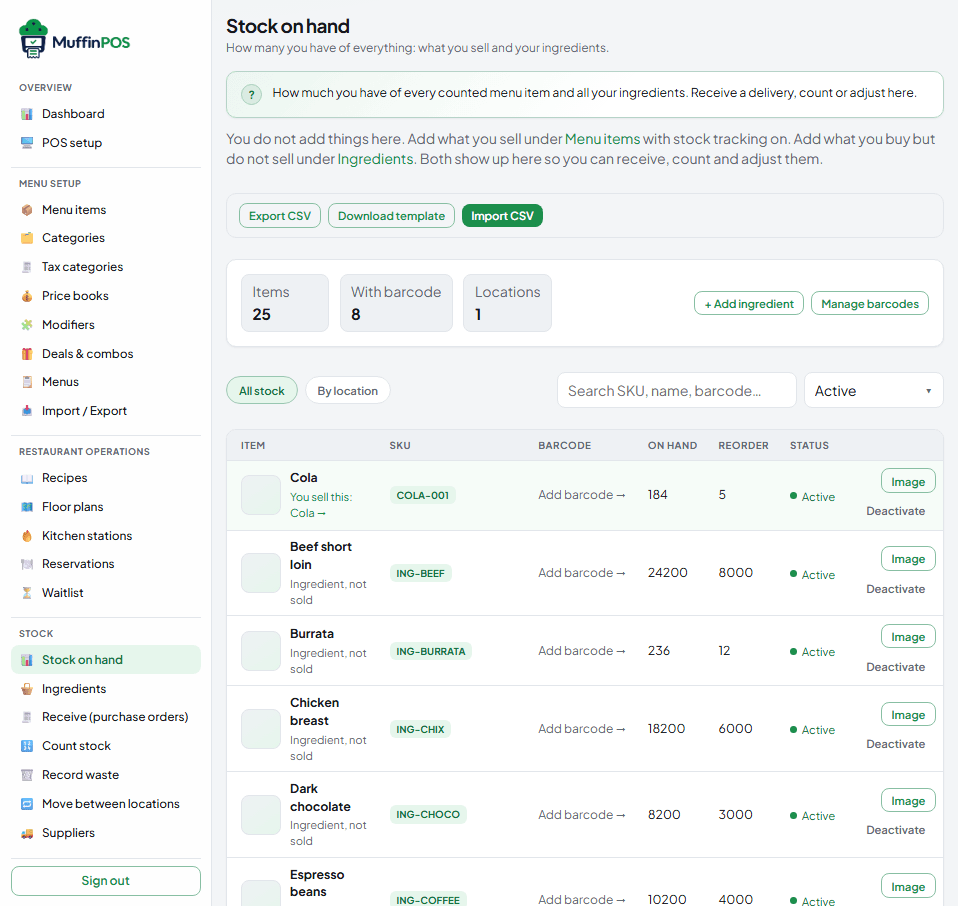
Stock on hand list showing which rows you sell and which are ingredients
Stuck on a step?
Tell us which guide and step you are on and we will walk you through it.