
Guide 3 of 4 · Web + desktop
Install and connect the desktop till
Download MuffinPOS for Windows and link it to your business with a one-time code.
All guides · About 5 minutes · For owner
Before you start, have ready
- A Windows 10 or 11 computer at your counter
- Your merchant portal open on any device
Step 1: Download and install
On the counter computer, go to the Download page and press "Download for Windows".
Open the file you downloaded and follow the installer. If Windows shows "Windows protected your PC", press "More info" and then "Run anyway". This message appears for new apps that are not yet widely downloaded.
Tip: You only install once. MuffinPOS tells you when a newer version is ready.
Step 2: Get your activation code
In the merchant portal, open "POS setup" in the left menu.
Give the till a name (like "Front counter") and press "Generate new activation code". You will see three things: Tenant ID, Location ID and a 6-digit code. Each has a "Copy" button.
Tip: Each code works once. If something goes wrong, generate a new code instead of retyping the old one.
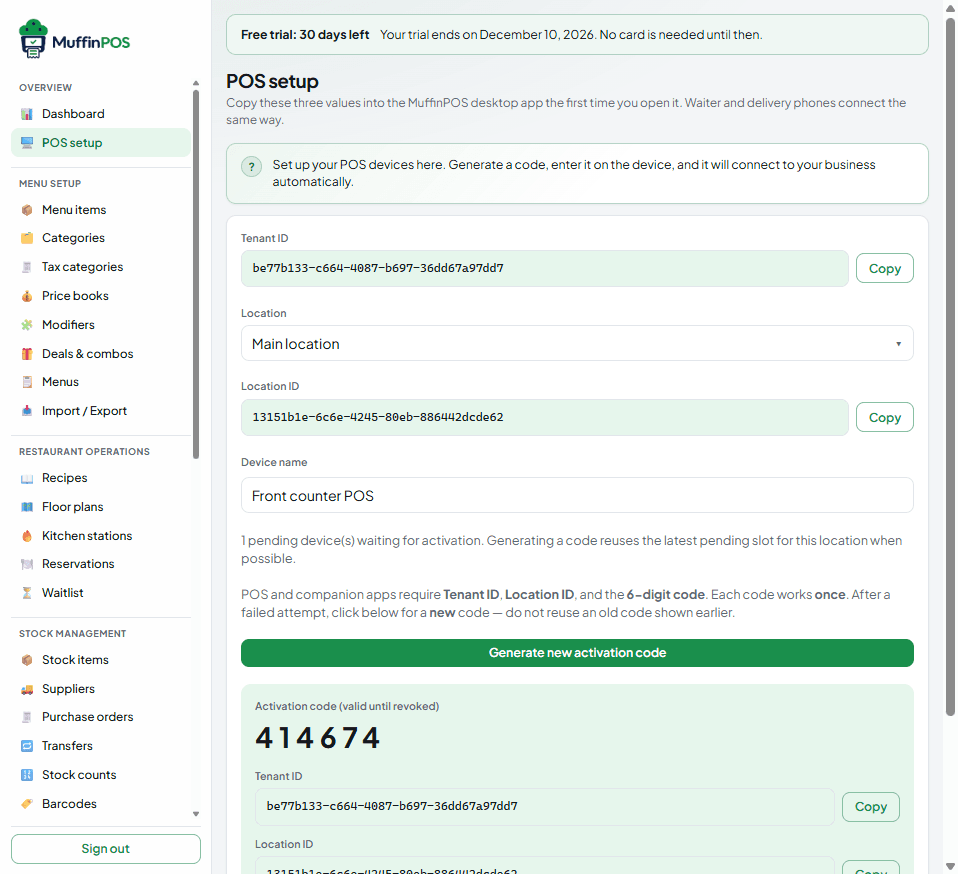
POS setup page showing Tenant ID, Location ID and a 6-digit activation code Step 3: Activate the till
Open MuffinPOS on the counter computer. Paste the Tenant ID, the Location ID and the 6-digit code into the three boxes, then press "Activate device".
The till downloads your products and staff. This takes a few seconds.
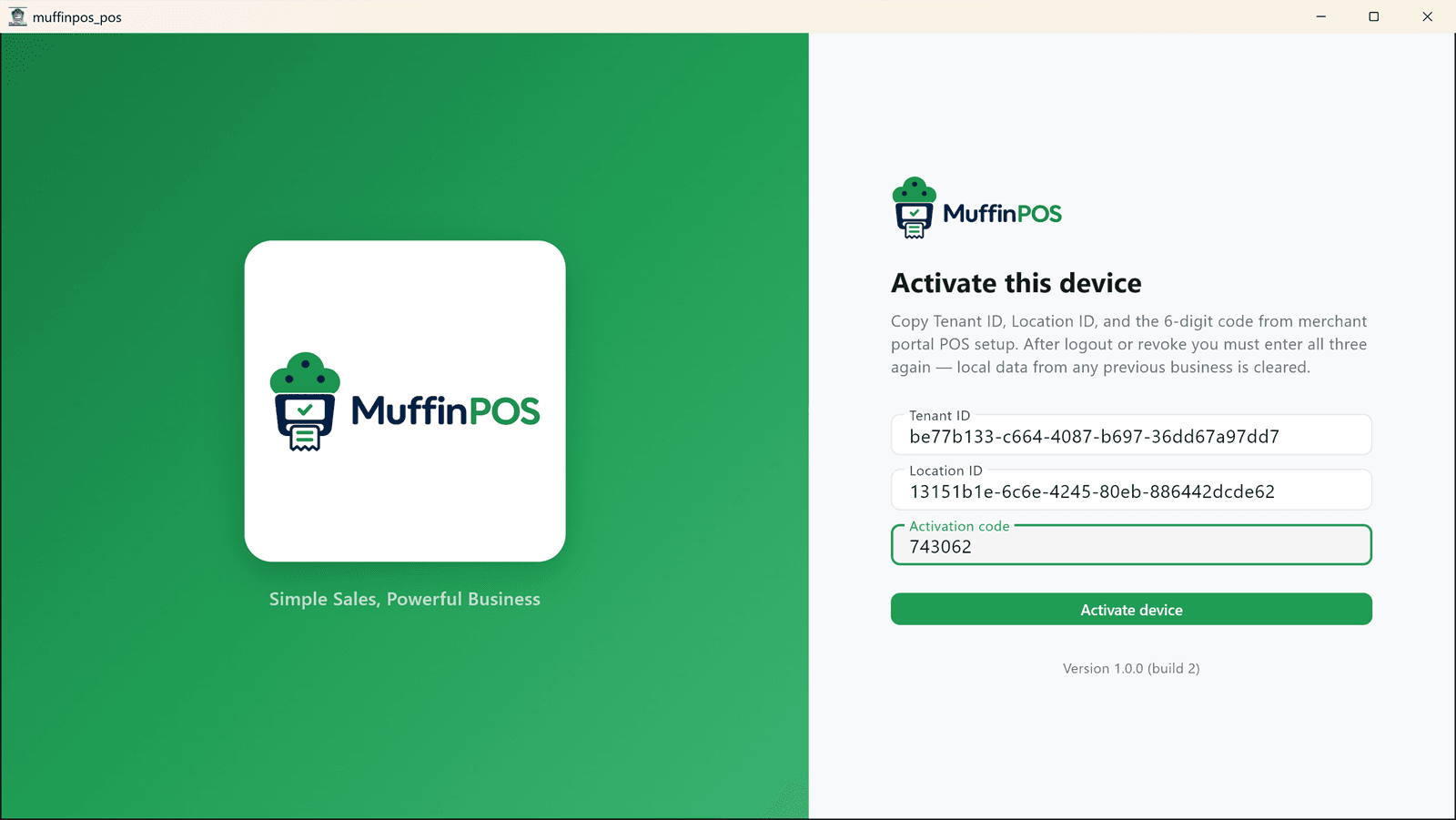
Desktop till activation screen with the three values filled in Step 4: Keep the till up to date
Click the round "i" button at the bottom of the left menu to see your version number. When a new version is out, it says "Update available" with a "Download update" button. The sign-in screen shows the same message.
Download it, close MuffinPOS and run the new installer. Your sales and settings stay on the computer.
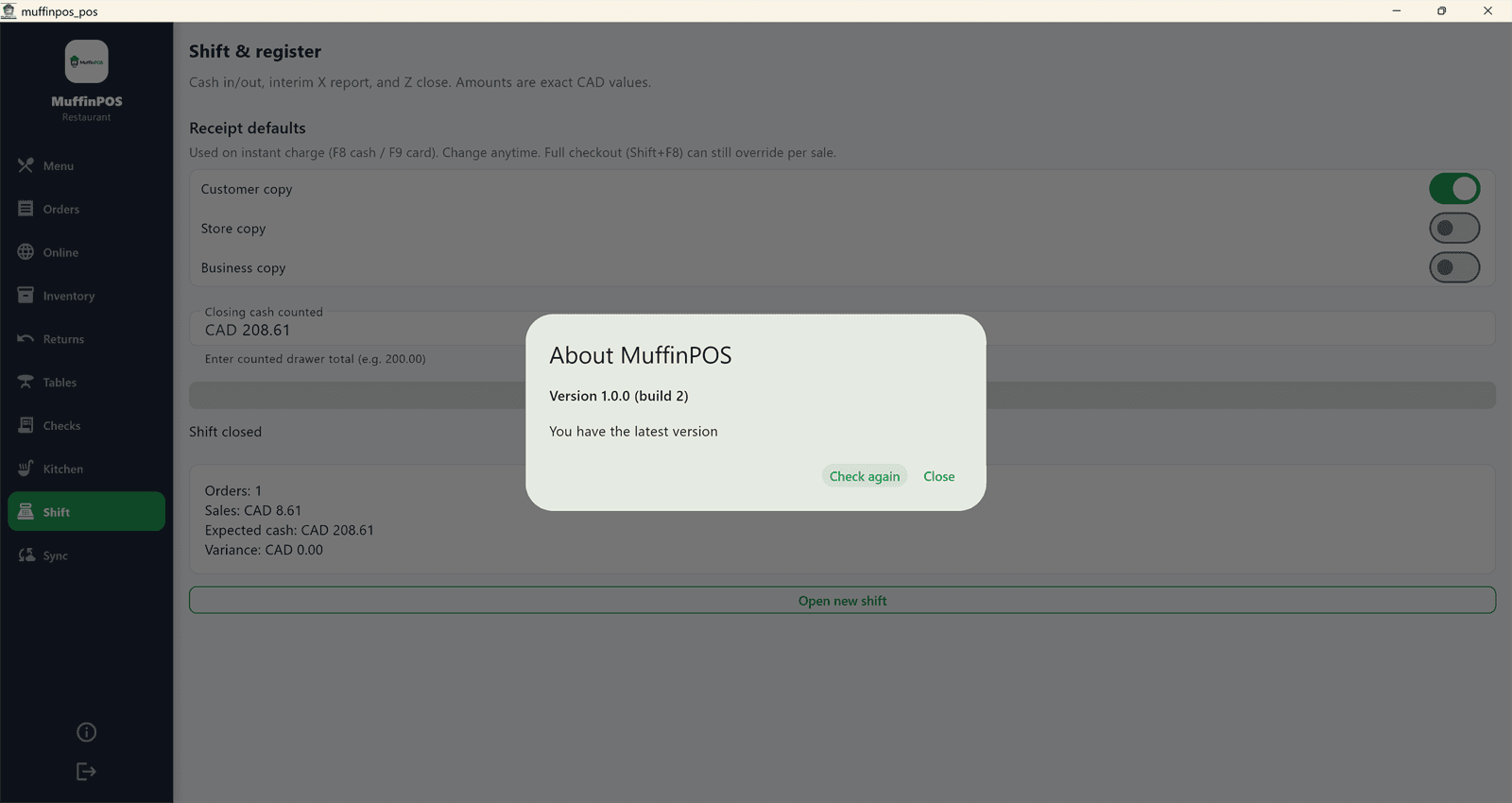
About MuffinPOS window showing version 1.0.0 build 2 and You have the latest version
Stuck on a step?
Tell us which guide and step you are on and we will walk you through it.